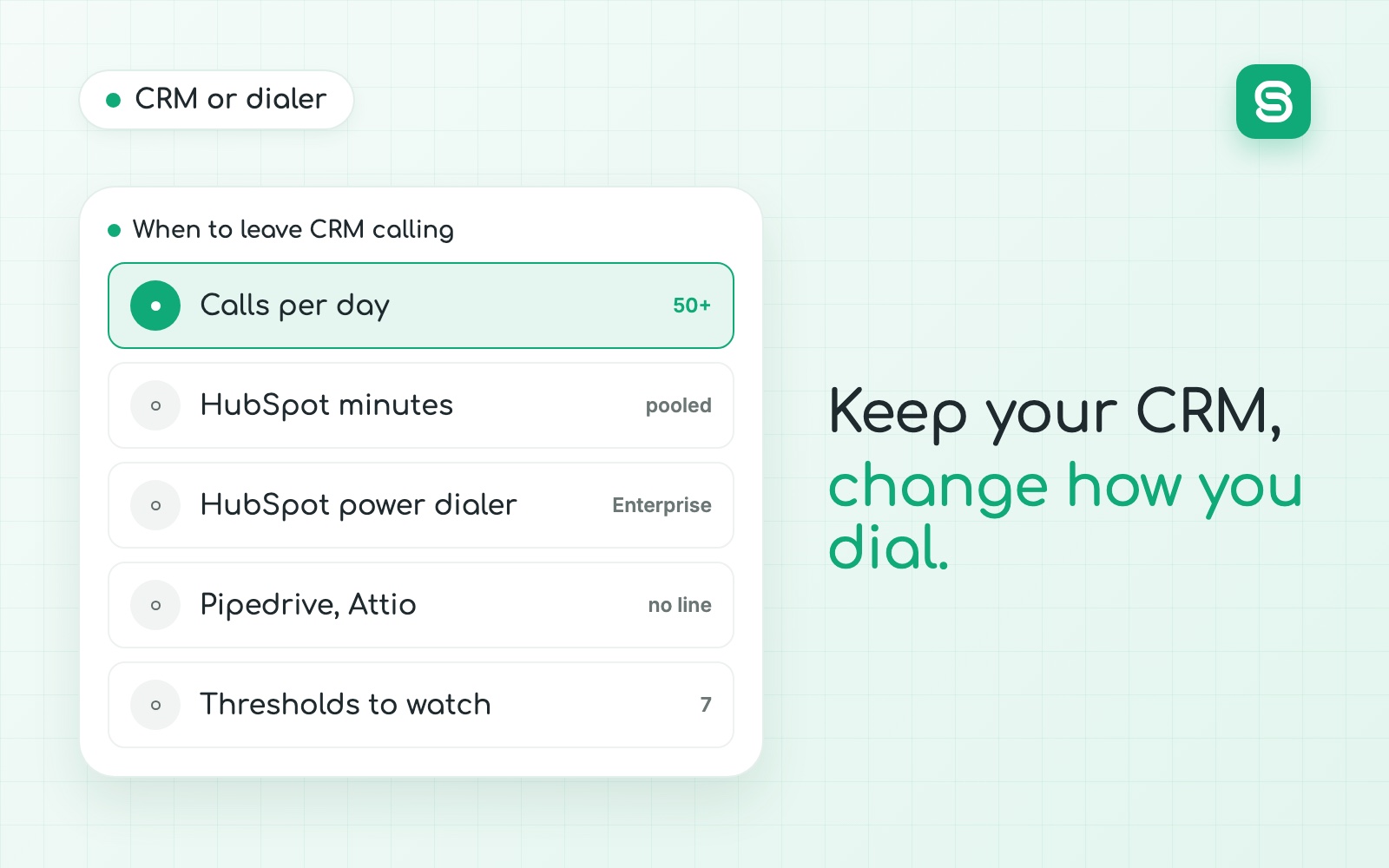
Your CRM can make calls, more or less. There is a phone icon on the record, the call goes out, the activity logs itself. For a team that picks up the phone a few times a day, that is all you need. For an SDR team that dials all day, the same button becomes the bottleneck: one click per number, one unanswered ring after another, and a minute pool that runs dry before the month is over.
What does built-in CRM calling actually do?
It does one thing, and does it well: call a contact from the record and log the call in the right place. The rep opens the contact, clicks the number, talks, picks an outcome. The activity lands on the timeline with a timestamp and duration, sometimes with a recording. Nobody retypes anything.
“CRM calling” covers three very different setups, though, and mixing them up is where most bad buying decisions start.
The first two start from the same gesture: a human clicking a number. The third starts from a list. Everything in this article comes down to that difference. For the full breakdown of integration levels, and what each one writes to the record, see our guide to phone system CRM integration.
Where native calling beats a dialer
It would be dishonest to open with the downsides. Native calling has four real strengths.
- One vendor. One contract, one invoice, one support line, one security review. In a company where every new tool needs IT and procurement sign-off, that matters.
- Context on screen. The rep calls from the record, with emails, deals and notes right there. For a customer check-in or a renewal call, that is exactly what you want.
- Nothing to sync. The call is born inside the CRM: no duplicates to worry about, no field mapping to maintain.
- No visible cost. Minutes come with the edition. As long as they last, a call costs nothing extra.
The first two start from a human clicking a number. The third starts from a list.
What is a dedicated dialer, and what does it add?
A dedicated dialer is software built for one job: maximizing conversations per rep-hour. It does not try to replace the CRM. It replaces the repetitive steps between two conversations, and you can spot one by five capabilities that native tools rarely have all at once.
- 01
It works the list on its own.
The rep loads a list or CRM view, starts the session, and the next number goes out as soon as the previous call ends. That is a power dialer: one call at a time, no clicking. - 02
It can dial several numbers at once.
A parallel dialer calls two, three or four numbers at the same time for one rep and connects the first person who answers. This is the feature that changes session output the most. - 03
It recognizes voicemail.
Answering machine detection tells a live voice from a voicemail greeting, an automated switchboard or a dead number, and frees the line without making the rep listen. - 04
It leaves the message for you.
Voicemail drop leaves a message recorded once, while the rep is already on the next call. - 05
It writes to the CRM.
Every attempt is logged on the record: outcome, duration, notes, plus recording and transcript depending on settings. The CRM stays current with no data entry.
The gap between one call at a time and several lines is big enough to deserve its own guide: parallel dialer vs. power dialer.
The limits of native CRM calling, CRM by CRM
Everything below was checked on November 13, 2026 against each vendor’s official pricing pages, help centers and documentation. Vendors change these often, so check again the day you decide.
| CRM | Built-in calling | Included volume | List dialing |
|---|---|---|---|
| HubSpot Sales Hub and Service Hub | Yes, from Starter | 500, 3,000 or 12,000 min a month for the whole account | Power dialer on Enterprise only |
| Salesforce Sales Dialer, Salesforce Voice | As a paid add-on | Depends on the Salesforce Voice edition (750 to 5,000 min with Amazon Connect) | Call lists, next call on click |
| Pipedrive | No (mobile calls use the phone's own carrier) | Not applicable | Through a third-party app |
| Attio | No (its recorder covers video meetings only) | Not applicable | Through a third-party app |
| Close A CRM built around calling | Yes, on every plan | Usage-based, no included minutes | Power dialer from Growth, predictive on Scale |
HubSpot: minutes pooled across the account
HubSpot is the best-documented case, and the most misunderstood. The Sales Hub pricing page lists 500 calling minutes a month on Starter, 3,000 on Professional and 12,000 on Enterprise. HubSpot’s call settings page adds the detail that changes everything: those minutes form a pool shared by every user on the account, and only Professional and Enterprise can buy more. Per the calling tool documentation, once the pool runs out mid-month, no new calls can be placed until the first of the next month, and a call routed through a registered phone uses twice as many minutes.
HubSpot’s power dialer requires Sales Hub Enterprise. It works a queue of contacts, and the next call starts once the rep wraps up the previous one. The documentation does not describe multi-line dialing, answering machine detection or voicemail drop. The pricing page also caps HubSpot-provided numbers at 1 on Starter, up to 3 on Professional and up to 5 on Enterprise, “not supported in all countries.” The full breakdown, edition by edition, is in our article on HubSpot calling limits.
Salesforce: a calling add-on, and phone tooling built for service

Salesforce offers two separate things. For sellers, Sales Dialer (formerly Lightning Dialer) adds call lists, click-to-dial from the record, prerecorded voicemail drop and automatically reserved local numbers, according to the official Trailhead module. Reps work the list with “Call Next,” one contact after another. We could not read its price on an official Salesforce page on the day we checked, so we do not quote one.
For team telephony, Salesforce sells Salesforce Voice as contact center editions on its voice pricing page: $125 per user per month with unlimited platform voice minutes, $50 to plug in a partner’s telephony, and $75 to $200 with Amazon Connect for 750 to 5,000 minutes a month. Those editions are designed for a customer service contact center, not for an outbound prospecting block. The dialers that plug into Salesforce are compared in our roundup of the best Salesforce dialers.
Pipedrive and Attio: no phone line included

Pipedrive’s help center is explicit: the CRM does not have a built-in calling integration, and it points to Marketplace apps (CloudTalk, Kixie, CallHippo, Aircall, Toky, JustCall, Circleloop). Only the mobile apps place calls, over the phone’s own line and carrier plan, or from the web app by handing the call off to your phone. For a Pipedrive user, the question is not “native or dialer” but “which third-party tool.” Our comparison of Pipedrive phone integrations sorts them by use case.
Attio does not make calls either. Its Call Intelligence feature records meetings on Zoom, Google Meet and Microsoft Teams, not phone calls. Phone calling runs through an app such as Aircall, and Attio’s help page for that app notes the integration does not create new records. Our guide to Attio phone integration covers the options.
Close and Zoho: two useful counterexamples

Not every CRM looks alike. Close was built around calling: its pricing page includes calling on every plan, billed on usage (“most outbound calls are around $0.02/minute”), with a power dialer and voicemail drop from the Growth plan and a predictive dialer on Scale. Per its dialing help article, the predictive dialer calls several numbers at once and never passes voicemail, busy signals or unanswered calls to the rep. If you are picking a CRM today for a team that lives on the phone, Close belongs on the shortlist; we also have a page on alternatives to Close.
Zoho CRM has added built-in telephony running on Twilio’s infrastructure and billed in credits, at $1 per credit. The page does not mention a power dialer.
Why click-to-call dialing costs so much
Because most calls go nowhere, and each one still takes every manual step. This is the heart of the issue, and it is easier to see than to describe.
The same call, two ways of working
What the rep does for every number on the list, answered or not.
CRM callingClick by click
- Open the list, then the contact record You
- Click the number You
- Wait for the ring, often for nothing You
- Voicemail: listen to the greeting, hang up or talk after the beep You
- Pick the outcome, type the note You
- Call logged on the record The tool
- Back to the list, next contact You
Six manual steps out of seven, repeated for every number, including the ones that never pick up.
Dedicated dialer synced with the CRMQueued
- Load the CRM list or view once You
- Dial the next number, or several at once The tool
- Screen out voicemail and bad numbers, drop the prerecorded message The tool
- Show the record when a person answers The tool
- Talk, pick the outcome You
- Record, transcribe, summarize, update the CRM record The tool
- Move to the next one The tool
Manual work concentrates on conversations. The rest is done by the tool, then written to the CRM.
The problem is not the time a good call takes. It is the time every failed attempt takes. In a fully anonymized Skipcall sample of 86,168 outbound calls placed over 12 months (November 2025 to November 2026) by a B2B prospecting team calling mostly French companies, 17.9% of calls were picked up and 11% became a conversation longer than 30 seconds. That is 9.1 dials per conversation, and 70.8% of the calls ended on voicemail. It is one team in one market, a benchmark rather than an industry average; you will find other published numbers in our cold calling statistics.
With CRM calling, each of those nine dials means opening the record, clicking, waiting, sitting through the voicemail greeting, picking an outcome. With a dialer, those steps disappear for the eight dials that go nowhere, and the rep only deals with the ninth.
Measure your own lost time with our selling time calculator. That number, more than seat prices, usually settles the debate.
The problem is not the time a good call takes. It is the time every failed attempt takes.
When should you switch to a dedicated dialer?
When several of these seven thresholds are crossed at once. One signal justifies a pilot; three or four justify a switch. The numbers below are practitioner benchmarks, not standards, so adjust them to your sales cycle.
The seventh threshold can be checked with our B2B phone data coverage by country tool. The prerequisite has its own article: phone numbers in your CRM, including what native enrichment actually returns.
Quiz: should you leave your CRM’s calling tool?
Answer for the team that makes the most outbound calls. The verdict highlights your strongest signals and suggests a next step.
Should you leave your CRM’s calling tool?
Eight questions, one minute. Answer for the team that makes the most outbound calls.
0/8 answered
-
1How many outbound calls does one rep make per day?
-
2How many people call from the same CRM account?
-
3How does the next call start?
-
4When a call hits voicemail, what happens?
-
5Have you ever hit your CRM’s calling minute or credit limit?
-
6What kind of calls dominate?
-
7Where are your prospects?
-
8What share of your records has a current direct or cell number?
Score 0, 1 or 2 points per answer (in order) on the first seven questions. 0 to 4: stay in the CRM. 5 to 9: pilot a dialer with one team. 10 to 14: move to a dedicated dialer.
Answer all eight questions to see the verdict.
Stay with your CRM’s calling
Your volume and calling style fit what the native tool does well: a call started from the record and logged on its own. A dedicated dialer would add a seat for little gain.
Next stepCheck that every call is logged and that the fields you need are filled. Connect phone and CRM properly →
Pilot a dialer with one team
Several signals show the native tool is starting to slow you down, but not for everyone. The right test: a dialer synced with your CRM, for your heaviest callers, for two weeks, comparing conversations per hour.
Next stepDecide between one call at a time and several lines based on your volume. Power dialer or parallel dialer →
Move to a dedicated dialer
Your team cold calls at volume, and the native tool costs you time between conversations or caps your minutes. Keep the CRM as the system of record, and let a tool built for dialing do the calling and update the record after each call.
Next stepCompare multi-line dialers on how they sync with your CRM. See the parallel dialer →
If the quiz points you to a dialer and you are not sure which, our which dialer quiz takes over from your volume, CRM and budget.
Good reasons to stay with your CRM’s calling
A dialer is not always the answer. In four situations, staying put is the right call, and a dialer vendor who tells you otherwise is selling you something you do not need.
In those cases the real work is elsewhere: getting the right data onto the record, and coaching better conversations. Our cold calling guide covers the method, whatever the tool.
Which setup fits which sales team?
It depends less on company size than on what the calls are for. The same company often needs both: CRM calling for the people who manage relationships, a dialer for the people who open them. Here is how the choice usually plays out by team profile.
| Team | What their calls look like | Usual best fit |
|---|---|---|
| Founder doing sales 1 person | A few calls a day between meetings, mostly warm intros and follow-ups | CRM calling, or a phone app logged to the CRM |
| Account executives Mid-funnel deals | Scheduled calls, demos, negotiation, call-backs on open deals | CRM calling from the record, with recording if you coach |
| Customer success and renewals Existing customers | Check-ins and renewals with people who know you | CRM calling: context beats dialing speed |
| Inbound lead response Speed to lead | Calling back form fills within minutes, often inbound transfers | A phone system with routing, not a prospecting dialer |
| SDR or BDR team Cold outbound | Hundreds of dials a week on cold lists, mostly voicemail | A dedicated dialer synced with the CRM |
| Agency or outsourced SDRs Several clients | High volume across several client lists and CRMs | A dedicated dialer that syncs with each client's CRM |
Two patterns come up again and again. First, a mixed team rarely needs one tool for everyone: equip the two or three reps who prospect with a dialer, and leave account managers on the CRM. You pay for dialer seats only where dialing is the job. Second, a team that is mostly inbound does not need a faster way to dial lists; it needs routing, queues and fast callbacks, which is a different product. If you are not sure which side of the line your team falls on, the quiz above settles it in a minute.
CRM calling for the people who manage relationships, a dialer for the people who open them.
The opposite mistake: buying a dialer too early
The trap runs both ways. Two reps making twenty calls a day to inbound leads do not need four parallel lines. They need to call back fast and well. Our speed to lead guide shows how to hold a five-minute callback. A badly used multi-line dialer also does damage: a weak list burned through in one morning, and prospects who answer into silence because the rep was not ready.
That last point deserves attention. In the US, it is also a compliance issue: for telemarketing calls, the FCC’s rule at 47 CFR 64.1200(a)(7) caps abandoned calls at three percent of live-answered calls per campaign over a 30-day period, and counts a call as abandoned if it is not connected to a live rep within two seconds of the person’s completed greeting (checked November 13, 2026). This is general information, not legal advice; our cold calling compliance checker helps you frame the questions for counsel. We cover the silence problem itself in our article on dead air on cold calls, and before you sign, run through our parallel dialer buyer questions.
A typical exchange with a sales manager (written for this article)
We're on HubSpot Pro. My five SDRs hate the call button. Should we go Enterprise for the power dialer?
Roughly how many calls does each rep make a day?
Between 80 and 100. And it's mostly voicemail.
Then Enterprise's power dialer fixes the clicking, not the voicemail: it dials one number at a time. And your minutes are still pooled across the account.
So what do we do?
Pilot a dialer synced with HubSpot for two weeks with two SDRs, and compare conversations per hour against the other three. Decide on a number.
What does each option cost?
Native calling looks free because it is bundled. It still has two costs: the edition you have to buy for enough minutes or a power dialer, and your reps’ time. A dedicated dialer has a visible price: a seat on top of the CRM.
This example does not say one path is always cheaper. Sales Hub Enterprise buys a lot more than calling: forecasting, advanced sequences, admin controls. If you use those, the edition pays for itself. But if you are moving up a tier only to dial faster, run the math the other way. What dialers on the market really cost, and what hides behind “starting at,” is in our article on how much a dialer costs.
One last point on metering. Native calling tools count minutes, often per account. Dialers count in very different ways: per minute, per credit, per line, or per conversation. On Skipcall, the Starter plan includes 400 conversations, and only a conversation longer than 10 seconds counts, per our pricing page. Always ask a vendor what exactly gets metered.
How does a dialer connect to your CRM?
Through the sync, and that is where a switch succeeds or fails. The dialer does not replace the CRM: it reads your lists from it and writes every call back. Four questions decide how good the connection is.
| Question | What you want | The trap |
|---|---|---|
| Where does the call start? | From the CRM record (embedded app) or from the dialer (loaded list) | Assuming a button on the record is enough to dial at volume |
| What gets written back? | Outcome, duration, notes, recording, transcript, sequence step | An empty activity with no outcome or note, useless in pipeline review |
| Which direction? | Both: a change in the CRM shows up in the dialer | A list frozen at import time that calls a customer who signed yesterday |
| Who creates records? | A clear rule: create only when the lead is qualified | Duplicates created on every call to an unknown number |
Field mapping deserves an hour of thought before go-live; the phone system CRM integration guide linked above walks through it field by field. On the Skipcall side, what the sync writes back is described on our CRM integration page, and each CRM (HubSpot, Salesforce, Pipedrive, Attio) has its own page in our integrations directory.
How do you switch without breaking your CRM?
In six steps, piloting before you roll out. Most failed switches are not about the tool. They come from a big-bang rollout with no baseline.
Measure the baseline
For each rep: dials per day, conversations, meetings booked, and minutes used in the CRM. Without a baseline, nobody will know whether the dialer changed anything.
Clean a first list
A few hundred contacts with verified direct dials or cell numbers. Weed out malformed numbers and switchboards before the first dial.
Configure the sync
Which fields write back, in which direction, who creates records. Test on ten calls and check every record by hand.
Check numbers and compliance
Pick the caller IDs prospects will see. If you record, check consent rules where you and your prospects are; our call recording laws by state shows which states require all-party consent. Scrub against your internal do-not-call list.
Pilot with part of the team
Two or three reps on the dialer, the rest on CRM calling, same kind of lists. Compare conversations per hour, not dials.
Roll out, or stop
If conversations per hour clearly went up, expand. If not, look for the cause (list, script, settings) before deciding the tool does not work.
For the first multi-line sessions, reps must be ready to talk the instant someone answers; our parallel dialer script gives the opening lines. To set the number of lines, see how many lines to dial in parallel.
Mistakes to avoid
The only number that matters is conversations, then meetings, per rep-hour.
The checklist to copy before you decide
Paste it into a doc and fill it in with your team. If you check at least three boxes in the first part, a dialer pilot is justified.
If data residency in Europe matters to you, see our list of European parallel dialers.
Where Skipcall fits, and where it doesn’t

Skipcall is a prospecting dialer synced with HubSpot, Pipedrive, Salesforce and Attio, and open to other tools through a REST API. Reps call from Skipcall, on the web or the mobile app, with a power dialer or a parallel dialer of up to 4 lines. AI answering machine detection frees the lines that hit voicemail, and voicemail drop leaves a prerecorded message for you. Calls are recorded, transcribed and summarized by AI, then the CRM record is updated with the outcome. Data is hosted in the European Union.
What Skipcall does not do, so you can compare honestly: no call button inside the CRM record, no IVR or inbound queues, no contact lists for sale. Enrichment only applies to contacts you already own.
What to remember
- CRM calling calls a contact; a dialer works a list. They are not two versions of the same tool but two different jobs.
- Pipedrive and Attio have no built-in calling. HubSpot does, with minutes pooled per account and a power dialer reserved for Enterprise. Salesforce sells calling as add-ons.
- The cost of click-to-call dialing hides in all the calls that go nowhere: 9.1 dials per conversation in our sample.
- Seven thresholds: calls per rep, team size, dialing time, need for multiple lines, voicemail, call type, countries. One signal justifies a pilot, three justify a switch.
- Staying with your CRM is the right call for account work, inbound and low volume.
- Switching tools does not mean switching CRMs. Pilot for two weeks with part of the team, and compare conversations per hour.