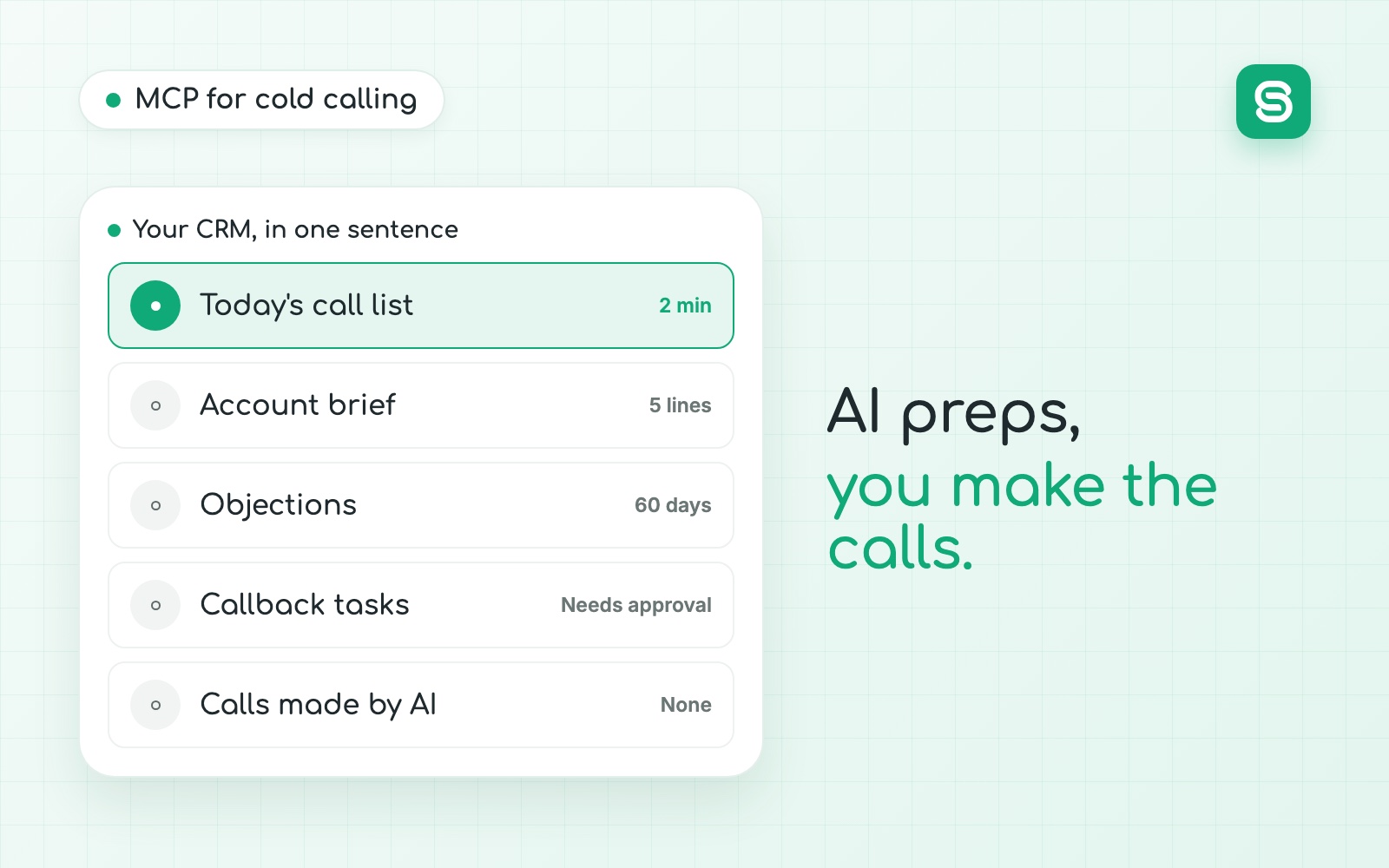
A rep who prospects by phone spends a surprising share of the day not on the phone: building the list, opening records one by one, reading the last note before a callback, logging outcomes, creating tasks. MCP is the first technology that lets an AI assistant do that legwork inside your real CRM, from a plain sentence. It does not dial a single number.
What is MCP, in plain terms?
MCP, short for Model Context Protocol, is a common language between AI assistants and the software where your data lives. The official site defines it as “an open-source standard for connecting AI applications to external systems” and compares it to a USB-C port: one shape of plug, many devices (modelcontextprotocol.io, accessed November 12, 2026).
Before MCP, connecting ChatGPT or Claude to a CRM meant a custom integration for each pair of tools. With MCP, the CRM vendor publishes one MCP server, a small service that lists what an assistant may do: search contacts, read a deal, create a task. Any assistant that speaks MCP, called an MCP client, can discover that list and use it during a conversation.
The path of a request
From your sentence to the CRM record, and back.
- You
One sentence
"Who do I need to call back this morning?"
- AI assistant
The MCP client
ChatGPT, Claude, Mistral Vibe or another compatible assistant picks the tool to call.
- MCP server
The socket
Published by the CRM vendor. It exposes a list of tools: search, read, create, update.
- Your CRM
Your data
Contacts, notes, tasks, calls. The server only sees what your account is allowed to see.
- ReadThe answer comes back into the conversation, with the records it looked at.
- WriteThe assistant shows what it is about to create or change. You approve, or not.
- CallNone. The phone stays in your hands.
Where MCP comes from, and who backs it
Anthropic announced it was open-sourcing the Model Context Protocol on November 25, 2024, as “a new standard for connecting AI assistants to the systems where data lives.” On December 9, 2025, the Linux Foundation announced the Agentic AI Foundation, with MCP as one of its three founding projects. Its platinum members include Amazon Web Services, Anthropic, Google, Microsoft and OpenAI, and Salesforce is a gold member.
That history matters to a sales team for one practical reason: MCP is not tied to one assistant. If half your team uses ChatGPT and the other half uses Claude, the same CRM server works for both. You are not betting your workflow on a single vendor.
What MCP is not
It is not an AI model. It does not make the assistant smarter; it gives it access. It is not an automation platform either: nothing runs on a schedule unless you ask in the conversation. And it is not a calling tool. No MCP server we reviewed for this guide places phone calls, and none should be expected to hold a sales conversation for you.
MCP does not make the assistant smarter. It gives it access.
What changes for someone who prospects by phone?
Most of the time a cold caller loses is spent between calls, not during them. The list has to be pulled and cleaned. Before a callback, someone has to find out what was said last time. After a session, outcomes need to be logged and tasks created. These are short, repetitive, click-heavy jobs. That is exactly the kind of work an assistant connected to the CRM handles well, because the request fits in one sentence and the answer lives in the records.
What stays the same is the call. The assistant does not hear the prospect’s tone, does not choose when to stay quiet, and does not ask for the meeting. Those remain the job of the rep, and the subject of our guides on discovery questions and handling cold call objections.
Why this is different from “using ChatGPT for sales”

Most “AI for sales” advice is about pasting text into a chatbot and asking for an email. The assistant knows nothing about your accounts, so it writes generic copy. With an MCP connection, the assistant reads your actual records: the note your colleague left in March, the outcome of the last three calls, the title change you logged yesterday. The answers are about your pipeline, not about sales in general. We cover the broader picture in our article on AI for sales prospecting and the AI cold calling stack.
Which sales tools have an official MCP server today?
Four of the CRMs most used by outbound teams run an official MCP server, hosted by the vendor itself. We checked each one in the vendor’s documentation on November 12, 2026. Menus and limits change quickly in this area, so re-read the linked page before you roll anything out.
| CRM | Official server | What it can do | Worth knowing |
|---|---|---|---|
| HubSpot | mcp.hubspot.com, OAuth sign-in | Read, create and update records and engagements (calls, meetings, notes, tasks) | No delete. 10 records per create or update. No engagement data when Sensitive Data is on |
| Salesforce | Salesforce Hosted MCP Servers, generally available | Standard servers plus custom ones built on Apex, Flows and APIs | An admin enables servers and manages External Client Apps first |
| Pipedrive | mcp.pipedrive.ai/mcp, OAuth sign-in | Search deals, contacts, organizations and leads; create and update deals, contacts and activities | All plans, with token limits by plan. Named "Pipedrive MCP BETA" in the Claude setup guide |
| Attio | mcp.attio.com/mcp, OAuth sign-in | Records, notes, tasks, meetings and call recordings, including semantic search | Writes ask for confirmation; reads are auto-approved |
HubSpot

HubSpot’s remote MCP server is a publicly hosted endpoint at mcp.hubspot.com that can “read, write, and update HubSpot records.” HubSpot states that its own AI connectors for Claude, Microsoft Copilot, Gemini and ChatGPT run on this server.
The Claude connector help page is the most precise source we found for what a rep can do. Contacts, companies, deals, leads and tickets can be read, created and updated. So can engagements, which is what matters for cold calling: calls, meetings, notes and tasks. Nothing can be deleted. Bulk changes stop at 10 records at a time. If your account has Sensitive Data turned on, the connector cannot reach engagement data at all. HubSpot itself recommends setting write tools to “Needs Approval.” Super Admins, and users with App Marketplace access, can connect it directly; everyone else needs a Super Admin’s approval first.
Salesforce

Salesforce offers Hosted MCP Servers, which its official repository describes as generally available. They come in two flavors: standard servers maintained by Salesforce, and custom servers your admin can build by exposing Apex, Flows or API Catalog endpoints. The repository also notes that admins “enable and disable servers” and manage the External Client Apps that assistants connect through. In practice, a rep cannot switch this on alone. Plan a short project with your Salesforce admin, and use custom servers to expose only the actions your SDRs need.
Pipedrive

Pipedrive launched its native MCP server on June 30, 2026. According to its feature page, it is available on every plan, subject to token limits that depend on the plan. It can search deals, contacts, organizations and leads, and create and update deals, contacts and activities, including scheduling follow-ups. Two details are reassuring for a sales manager: the assistant “can only work with information Pipedrive users already have permission to see/edit,” and every action is recorded in the change log. Pipedrive’s Claude setup article still names the connector “Pipedrive MCP BETA.”
Attio

Attio’s MCP documentation is the most detailed of the four. The server at mcp.attio.com/mcp exposes read tools for records, notes, tasks, meetings and call recordings, including semantic search across notes and recordings, plus write tools to create and update records, notes and tasks, delete tasks and merge records. Write operations ask for your confirmation before any data changes, while reads are auto-approved. Attio is listed in both the Claude and ChatGPT directories. Attio documents rate limits per workspace, for example 100 read requests and 25 write requests per second. If you run calls through Attio, our guide to Attio phone integration explains how call data gets there in the first place.
And your other tools?
MCP is not limited to CRMs. Calendars, document tools and email clients are being connected the same way, and the official MCP site cites Google Calendar and Notion as typical examples. Prospect data providers have followed: Clay’s MCP server, for instance, lets ChatGPT or Claude search its people database and run its enrichment to find emails and phone numbers. Whatever the source, a number found this way still needs checking before you dial it, and our free phone number validator does the format check. For a cold caller, the CRM comes first, because that is where call outcomes, notes and tasks live. Picking that CRM is its own decision, which we cover in the best CRM for SDR teams.
How do you connect your CRM to ChatGPT, Claude or Mistral?
The principle is the same in every assistant: find the CRM in the directory, or add a custom connector with the server URL, then sign in with your CRM account. What differs is where the menus are and who may add a connector on a team plan. We checked each vendor’s help pages on November 12, 2026.
| Assistant | Where to add a server | Who can add it on a team plan | Write actions |
|---|---|---|---|
| Claude | Customize, then Connectors, then Add custom connector | Owners and Primary Owners (Team); also custom roles with the right access (Enterprise) | Asks for approval unless you click "Allow always" |
| ChatGPT | Plugins page, + button, Add custom MCP server | Workspace permissions apply; admins and owners on Business | Confirmation required by default |
| Mistral Vibe | Connectors page, + Add Connector, Custom MCP Connector tab | Administrators only; on Free, Pro and Student the owner is the admin | Review tool inputs and outputs, per Mistral |
In Claude
Anthropic’s help page on custom connectors using remote MCP lists the steps. Custom connectors work on every plan: Free (limited to one), Pro, Max, Ultra, Team and Enterprise.
- 01
Check the directory first.
Under Customize, then Connectors, browse the directory. HubSpot and Attio both document a listed connector: search for the name and click Connect. - 02
Otherwise, add a custom connector.
Click ”+ Add,” then “Add custom connector.” Enter a name and the remote MCP server URL from your CRM’s documentation, then click Continue. Claude detects the authentication settings; review them and continue. - 03
Sign in to the CRM.
Choose “Sign in now,” then log in with your CRM account and accept the permissions. Review them: deny anything your use case does not need. - 04
Set tool permissions.
Claude asks before it uses a tool. Keep write tools on approval: Anthropic advises clicking “Allow always” only for tools you trust to run unsupervised. - 05
Turn it on per conversation.
In a chat, click ”+” at the lower left, choose Connectors and toggle the CRM on. Start with a read-only question.
On Team, only Owners and Primary Owners can add a custom connector, under Organization settings, then Connectors; Enterprise also allows custom roles with the right access. Members then click Connect and sign in one by one, so each person only reaches their own CRM rights. Two details matter. In Research, Claude can call connector tools without asking each time, so Anthropic recommends turning off write tools before you start one. And connections come from Anthropic’s cloud, not from your laptop: a server behind a VPN must allow Anthropic’s published IP ranges.
In ChatGPT
OpenAI’s guide to adding a custom MCP server describes the current path, on ChatGPT for the web. Listed apps such as Attio connect from the directory with a search and a sign-in. For any other server:
- 01
Open the Plugins page.
Go to ChatGPT Plugins, select the + button, then “Add custom MCP server.” - 02
Enter the server and its sign-in.
Give it a name, paste the server URL under Connection, and choose the authentication your CRM documents, usually OAuth. - 03
Read the risk warning.
Select “I understand and want to continue,” then “Create as a plugin.” - 04
Install, then test.
Find the plugin in your personal plugins or your workspace, install it, and try a read-only question in a chat.
Workspace permissions apply to adding custom servers. On a Business workspace, OpenAI’s help center reserves it to admins and owners, and an Enterprise admin can grant the right to selected members. ChatGPT treats any tool not marked read-only as a write action, and “write actions by default require confirmation.” OpenAI also warns that custom MCP servers “are not developed or verified by OpenAI,” and that prompt injection can lead a model to send private data elsewhere. CRM vendors’ own ChatGPT guides sometimes describe an older path through developer mode in Settings: these menus were renamed more than once, so trust OpenAI’s page first.
ChatGPT treats any tool not marked read-only as a write action.
In Mistral Vibe (formerly Le Chat)
Mistral renamed Le Chat to Vibe; the app still lives at chat.mistral.ai. Its documentation describes MCP connectors in Work mode: open the Connectors page, click ”+ Add Connector,” switch to the Custom MCP Connector tab, enter a name and the server URL, then click Connect. Vibe detects the authentication method and supports OAuth 2.1, a bearer token or basic authentication, or none. Adding a connector is an administrator-only feature; on Free, Pro and Student plans the account owner is the administrator. Mistral warns that “a malicious server could attempt to inject hidden instructions.”
Remote server or local server?
Everything above concerns remote servers, hosted by the vendor and reached over the internet. You will also see guides that install a server on your own computer, through a file named claude_desktop_config.json or a command-line tool. Those local servers run with an API key stored on your machine, and Anthropic notes they are not available in claude.ai or Cowork. For a sales team, a vendor-hosted server with an OAuth sign-in is simpler to roll out and easier to revoke.
What does a calling session with MCP look like?
Here is a typical morning for an SDR who calls from a dialer and logs everything in HubSpot, with Claude or ChatGPT connected to the CRM. The times are what each step takes the rep, not a benchmark.
Pull the list
“List the contacts in the Operations Directors segment with a phone number, no call in 30 days and no do-not-call status, oldest activity first.” The assistant returns a table. The rep removes two accounts a colleague is working, then exports the list or builds it as a view in the CRM. A quick pass through our free CSV cleaner catches badly formatted numbers before the import.
Brief the first ten accounts
“For each of the first ten, give me in three lines what was said last time and the objection on record, with dates.” Two records turn out to be empty: the assistant says so instead of inventing context, which is exactly what the prompt asked for.
Call
The rep closes the chat and calls from the parallel dialer or power dialer. MCP plays no part here. Outcomes, notes, recordings and summaries flow into HubSpot through the phone system’s CRM integration.
Sort the session
“List today’s calls by outcome, and for each conversation give one line and a suggested next step with a date.” The rep corrects two dates, deletes one suggestion that made no sense, and keeps the rest.
Create tasks and drafts
“Prepare callback tasks for every ‘call back’ outcome and show me the list.” The rep approves eight of nine. Then: “Draft follow-up emails for the three people who asked for one. Drafts only.”
That last sentence is the whole story. MCP speeds up access to what is written. A team whose reps log “no answer” and nothing else will get fast, empty answers. The teams that gain the most are the ones where every conversation already ends with a summary on the record, written by the rep or by the phone system, which we cover in our guide to AI call transcription and summaries.
15 MCP prompts for cold calling, ready to copy
Each prompt below is written to be pasted into an assistant connected to your CRM. They follow the same rules: one clear scope, a precise output, an instruction to cite where each fact comes from, and an explicit “ask before writing” for anything that changes the CRM. Use the filter to show one moment of the session.
15 prompts to copy, sorted by moment
Replace what sits between brackets. Each prompt works with an assistant connected to your CRM over MCP.
- 01
In the CRM, list the contacts in the [segment name] segment who have a phone number, no call in the last [30] days and no "do not call" status. Sort them by last activity date, oldest first. Give me a table: name, company, title, phone, date and outcome of the last call. Use CRM data only. If a field is empty, write "not in CRM".
- 02
Summarize the [company] account in five lines: who we have already spoken to, what was said in the last conversation, the objection or blocker on record, the tool or vendor in place if it is mentioned, and the planned next step. Give the date of every note or call you use. Do not infer anything that is not written in the CRM.
- 03
I am calling [first name last name] at [company] back in five minutes. Find the record and tell me, in under ten lines: the date of the last call, what they asked for, what we promised, the exact reason behind "call me back", and the opening line you suggest to pick up where we left off. Cite where each point comes from in the CRM.
- 04
In the [list name] list, find the contacts to remove before the session: duplicates (same number or same email), missing or malformed numbers, contacts marked "do not call" or opted out, contacts a teammate is already working. Group the list by reason. Do not change anything.
- 05
Among my open callback tasks, which are overdue, which are due today, and which are tied to an open deal? Sort them in that order and, for each one, give the date we promised the prospect if the note mentions it.
- 06
Read the call notes and summaries from the last [60] days for contacts in the [segment name] segment. Which objections come up most often? For each one, give the number of records where it appears, two exact phrasings taken from the notes, and the date of the note. Do not count an objection you cannot quote.
- 07
For each of the first [10] contacts on today’s list, suggest an opening line under twenty words and three discovery questions. Rely only on the title, industry and history found in the record. If the record holds nothing useful, say so and suggest a generic opener rather than inventing context.
- 08
Find the last [20] calls with the outcome "meeting booked" for contacts with the title [title]. Based on the summaries, what did the prospect say right before agreeing? Group by theme and quote one excerpt per theme, with its date.
- 09
Write a twenty-second voicemail and a follow-up text under 160 characters for [first name last name] at [company], based on their title and the last conversation on record. One topic, my first name, my number, no numeric promise. Show me both drafts and send nothing.
- 10
List the calls I made today, grouped by outcome. For every call where a conversation happened, give one line on what was said and the next action you suggest, with a date. Flag any call with no outcome logged.
- 11
For every call today with the outcome "call back", prepare a callback task: contact, the date and time the prospect asked for if the note mentions them, otherwise [3] business days from now at [10 a.m.], and one sentence of context. Show me the full list before creating anything. Create the tasks only after I approve.
- 12
From the notes and summaries of today’s calls, pick out the facts that should update a record: new title, new number, tool in place, contract end date, right person to talk to. Show a table: contact, field, current value, proposed value, source sentence. Write to the CRM only the rows I approve.
- 13
For the [5] conversations today that ended with "send me an email", draft a follow-up email under 120 words each. Reuse the prospect’s words as they appear in the summary, restate the agreed next step and offer two time slots. Drafts only.
- 14
For my calls this week: how many dials, how many conversations, how many meetings, based on the outcomes logged in the CRM? Which days and time blocks produced the most conversations? Pick three calls to listen back to and say why: one that booked, one that stalled on an objection, one that ended early.
- 15
Which contacts answered at least once, did not say no, and have neither an open task nor any activity in the last [21] days? List them with the last note and, for each, suggest following up, waiting or closing out, with your reason in one sentence.
If you want variations by role or industry, our free AI sales prompt generator builds them from a few fields. The prompts above are deliberately tied to CRM data; the generator’s are broader.
What makes a good prompt for a connected assistant?
Where do the call notes and transcripts come from?
An assistant connected to your CRM can only mine objections, recall the last conversation or suggest a next step if those conversations are in the CRM. For phone prospecting, that depends on your calling tool far more than on MCP.
This is where Skipcall fits today, without any MCP connector of its own. Calls start in Skipcall, are recorded, transcribed and summarized by AI, and the CRM integration sends the outcome, notes, summary and a link to or file of the recording to HubSpot, Pipedrive, Salesforce or Attio. Once there, your CRM’s own MCP server can read them like any other note or engagement. Details are on our call recording and transcription page.
MCP speeds up access to what is written. A team whose reps log “no answer” and nothing else will get fast, empty answers.
Whatever tool you use, the summary format decides how useful the assistant will be. Our sales call summary template lays out the sections that make a summary readable by a person and by an assistant: context, what was said, objection, commitment, next step with a date.
What are the limits and risks of MCP in sales?
Connecting an assistant to a CRM means giving a system that writes fluent sentences access to personal data and to the record of your sales activity. Most risks are manageable. None should be skipped.
The MCP project publishes its own security best practices, written for developers but readable by an ops lead. Two principles from it translate directly to a sales team: grant the smallest set of permissions that does the job, and treat any locally installed server as software that runs with your own rights.
What MCP does not do for cold calling
The marketing around AI agents blurs a few lines that matter to a phone team. Here is where MCP stops.
- 01
It does not dial.
No server we reviewed places calls. Your phone system or dialer still runs the session, and a person still talks to the prospect. - 02
It does not fix bad data.
If numbers are wrong or duplicated, the assistant will build a clean-looking list of wrong numbers. Clean the file first, and verify the numbers you call. - 03
It does not know what nobody wrote.
A promise made on the phone and never logged does not exist for the assistant. Summaries on every call are the prerequisite. - 04
It does not run on its own.
Out of the box, nothing happens until someone asks. Scheduled, unattended actions belong to automation platforms, with their own controls. - 05
It does not decide who to call.
It can sort and filter on the criteria you give it. Choosing the segment, the angle and the moment is still sales judgment, the subject of our article on turning buying signals into a call list.
Is MCP worth it for your team?
The answer depends less on the size of the team than on the state of its CRM. Count your “yes” answers below.
Eight or more: run a two-week pilot with two reps and five prompts, and measure the time spent preparing sessions before and after. Five to seven: fix the gaps first, most often the call summaries and the cleanliness of the records. Below five: MCP will make a messy CRM faster to read, not more useful. Start with the basics in our guide to connecting your phone system to your CRM.
Mistakes to avoid when you start
Skipcall and MCP: where we stand

Skipcall is preparing an MCP connector. It will let ChatGPT, Claude, Gemini, Mistral or any other MCP-compatible assistant reach your Skipcall workspace: contacts and segments, call history, transcripts, summaries, sequences, tasks and messages. That scope is exactly what our REST API already exposes; the connector will not widen it, it will make it usable without a developer. The authorization will be granted once from your settings and revocable at any time. No date has been announced, and the MCP connector page describes what it will bring.
Until then, you have two ways to put Skipcall data in front of an assistant:
Skipcall does not have a voice agent, and the connector will not change that: the AI transcribes, summarizes and filters voicemails, and people hold the conversations. If the session is the part you want to speed up, that is the job of a dialer, not of MCP. Our complete cold calling guide covers how the two fit together.
Where to go next
MCP is most useful on top of a calling routine that already works. If your callbacks are the bottleneck, read our guides on how to call a prospect back and on the “call me back later” objection. If you want to learn from each session, the cold call review gives a 15-minute routine that an assistant can help prepare. And for the tools themselves, our selection of the best AI tools for sales and customer success teams and the telephony API automation guide go further.
What to remember
- MCP is a standard plug between AI assistants and the software that holds your data. Anthropic published it in November 2024; the Linux Foundation’s Agentic AI Foundation has hosted it since December 2025.
- Four CRMs run an official server: HubSpot, Salesforce, Pipedrive and Attio. Prefer them to community servers.
- The assistant only sees what your account can see, and connects through your normal CRM login. Use a normal user, not an admin.
- The value sits around the calls: lists, account briefs, objection mining, follow-up drafts and callback tasks. The call itself stays human.
- Answers are only as good as your notes. Call summaries on every record are the prerequisite, and that comes from your phone system.
- Keep writes on approval, ask for sources in every prompt, and re-test your prompts when menus change.
- Skipcall’s MCP connector is in preparation, with no date. Today, Skipcall summaries reach your CRM, where its MCP server can read them.